Copaste
Clipboard history, one shortcut away.
Copy as usual. When you need something from earlier, press ⇧⌘V: your history opens next to your text cursor, you pick an item, and Copaste pastes it for you. Text, links, images and files, all searchable, all on your Mac.
- macOS 14 Sonoma or later
- Apple Silicon & Intel
- English, Português, Español
- Notarized by Apple
Sat 9:41 Weekend in London ✈️
Saturday · 3 items
Flight lands at 9:40, then the Tube to the hotel.
Address:

How it works
Three keystrokes. That’s the whole manual.
- 01 ⌘ C
Copy like always
Text, links, images, files: Copaste quietly keeps a history of everything you copy.
- 02 ⇧ ⌘ V
Open your history
The list pops up right under your text cursor. Type to search, or use the arrow keys.
- 03 ↩
Pick it, it’s pasted
Copaste pastes the item straight into the app you were using. ⇧↩ pastes plain text.
Features
Everything Copaste does for you.
Small on purpose, thoughtful in the details.
Everything you copy, remembered
Plain and rich text, links, images and files are saved as you copy them, up to 1,000 items.
Opens at your cursor
The list appears under your text cursor or focused field. Prefer the menu bar? Switch it in Settings.
Instant search
Start typing to filter. Arrow keys, ↩ and ⌘1–⌘9 keep your hands on the keyboard.
Pin the keepers
Pin signatures, addresses and snippets so they never scroll away or get cleared.
Always up to date
Checks for updates once a day. A dot on the menu bar icon tells you when one is ready, verified and signed.
Private by design
History stays on your Mac. Passwords from password managers are skipped, and you can exclude any app.
Lives in the menu bar
No Dock icon. Click the menu bar icon to browse your history, right-click it for settings.
Speaks your language
English, Português and Español, following your Mac’s language.
A closer look
Feels right at home on your Mac.
Light and dark mode, following your system settings.


Keyboard shortcuts
- Open or close your history
- ⇧ ⌘ V
- Move the selection
- ↑ ↓
- Paste into the app you were using
- ↩
- Paste as plain text
- ⇧ ↩
- Paste item 1 to 9
- ⌘ 1…9
- Pin or unpin
- ⌘ P
- Delete the item
- ⌘ ⌫
- Switch between Recent and Pinned
- ⇥
- Close
- esc
Private by design
- Your history is stored only on your Mac, in a folder only your user account can read.
- Nothing is uploaded, synced or shared. No account, no analytics, no ads.
- Content that password managers mark as sensitive is never recorded.
- Exclude any app, pause recording, or clear your history at any time.
One permission
Accessibility
Lets Copaste press ⌘V for you and open the list at your text cursor. It never records your keystrokes or screen. Without it, picking an item simply copies it so you can paste with ⌘V.
Install
Up and running in a minute.
- 1
Download Copaste-1.1.0.dmg
4.1 MB, signed and notarized by Apple.
- 2
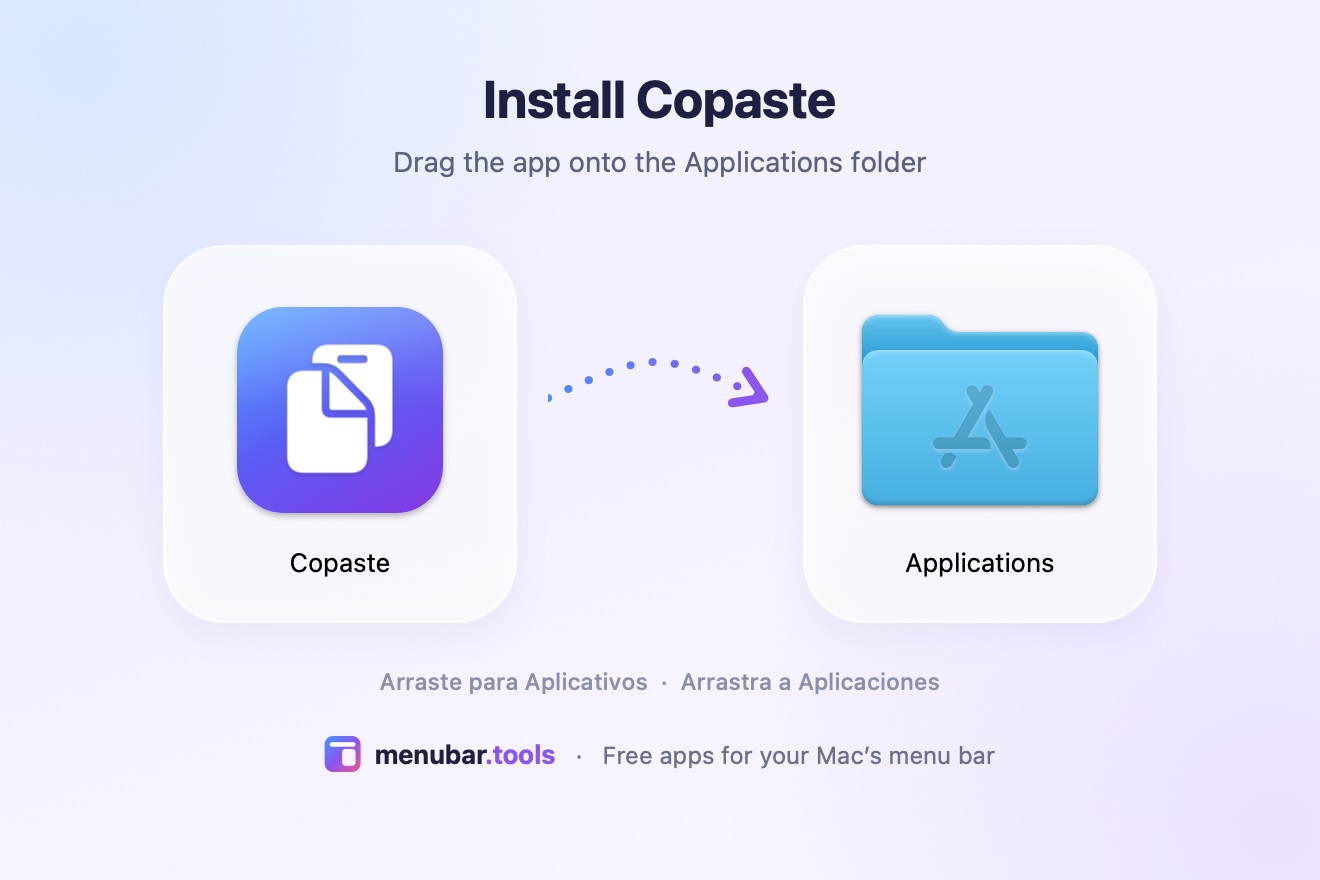
Drag Copaste into Applications
Open the downloaded file and drop the icon onto the Applications folder.
- 3
Open Copaste
macOS asks once because it came from the internet: click Open. The welcome guide takes it from there.
FAQ
Questions, answered.
Is Copaste really free?
Yes. No ads, no account, no subscription, no trial. If it saves you time, you can buy us a coffee, but you never have to.
Why does it need Accessibility permission?
macOS only lets an app press ⌘V for you, or see where your text cursor is, after you allow it in System Settings › Privacy & Security › Accessibility. Copaste uses it for exactly those two things. The welcome guide walks you through it.
Where is my history stored? Does it sync?
Only on your Mac, in ~/Library/Application Support/Copaste, readable only by your user account. Nothing leaves your Mac.
Will it save my passwords?
Password managers like 1Password and Apple Passwords mark what they copy as sensitive, and Copaste skips those items. You can also exclude any app in Settings.
⇧⌘V used to be “Paste and Match Style”. What now?
While Copaste runs, ⇧⌘V opens your history. Press ⇧↩ in the list to paste as plain text, or choose a different shortcut in Settings.
Why isn’t it on the Mac App Store?
App Store apps run in a sandbox that blocks pasting for you and finding your text cursor, the two things that make Copaste feel instant. So we distribute it directly, signed and notarized by Apple.
How do I update Copaste?
From version 1.1 on, Copaste checks for updates once a day and shows a dot on its menu bar icon when one is ready. You can also right-click the icon and choose Check for Updates…. If you have version 1.0, download the latest version here once; after that, updates come to you.
How do I uninstall it?
Right-click the Copaste menu bar icon, choose Quit, and move Copaste from Applications to the Trash. To delete your history too, remove ~/Library/Application Support/Copaste.
Release notes
What’s new.
-
Version 1.1.0 Latest
- Automatic updates: Copaste checks for new versions once a day and verifies them before installing.
- When an update is ready, a small dot appears on the menu bar icon instead of a window popping up.
- New “Check for Updates…” in the menu bar menu, the panel’s ••• menu and Settings › Updates.
- Coming from 1.0? Download this version once; future updates come to you.
-
Version 1.0.0
- First release: clipboard history for text, links, images and files.
- Opens at your text cursor or below the menu bar icon, with search and pinning.
- Welcome guide for the Accessibility permission.
- Available in English, Portuguese and Spanish.
Ready to try Copaste?
Free, no account. macOS 14 Sonoma or later, Apple Silicon & Intel.
Missing a Mac app?
Tell us what your menu bar is missing.
Got a small, nagging problem a tiny Mac app could solve? Send it our way. If it’s a good fit, our team might build it, free for everyone.